> ## Documentation Index
> Fetch the complete documentation index at: https://docs.carviz.com/llms.txt
> Use this file to discover all available pages before exploring further.
# Setting up your account
> After creating your account, you need to review all those informations
## Verify your global informations
Go to the Dashboard on your [organization page](https://dashboard.carviz.com/organization) and fill all your informations.
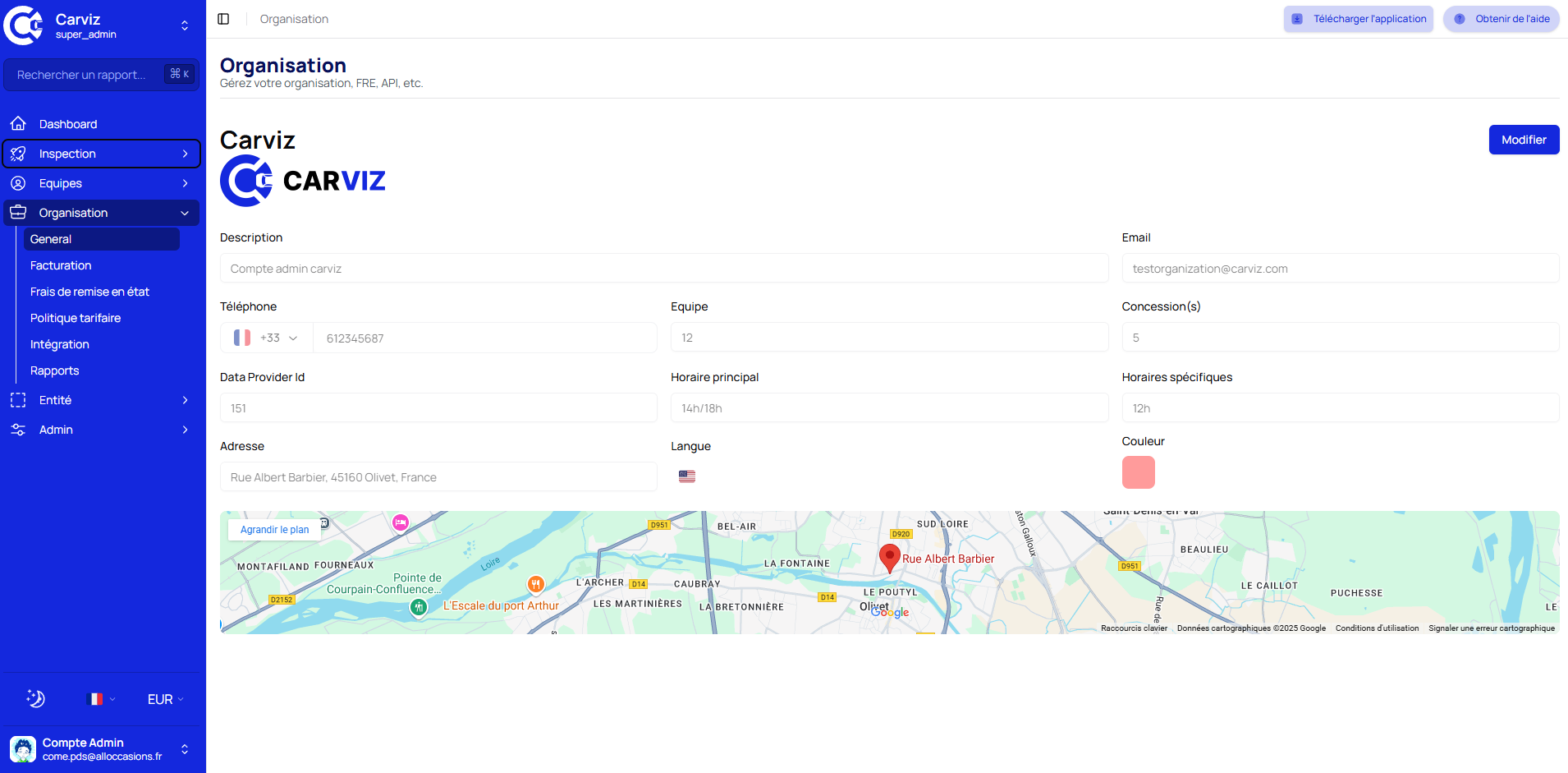 Parts of those informations can be send to customers when we send them emails or messages on your behalf for distance inspection.
## Setup your Restoration costs
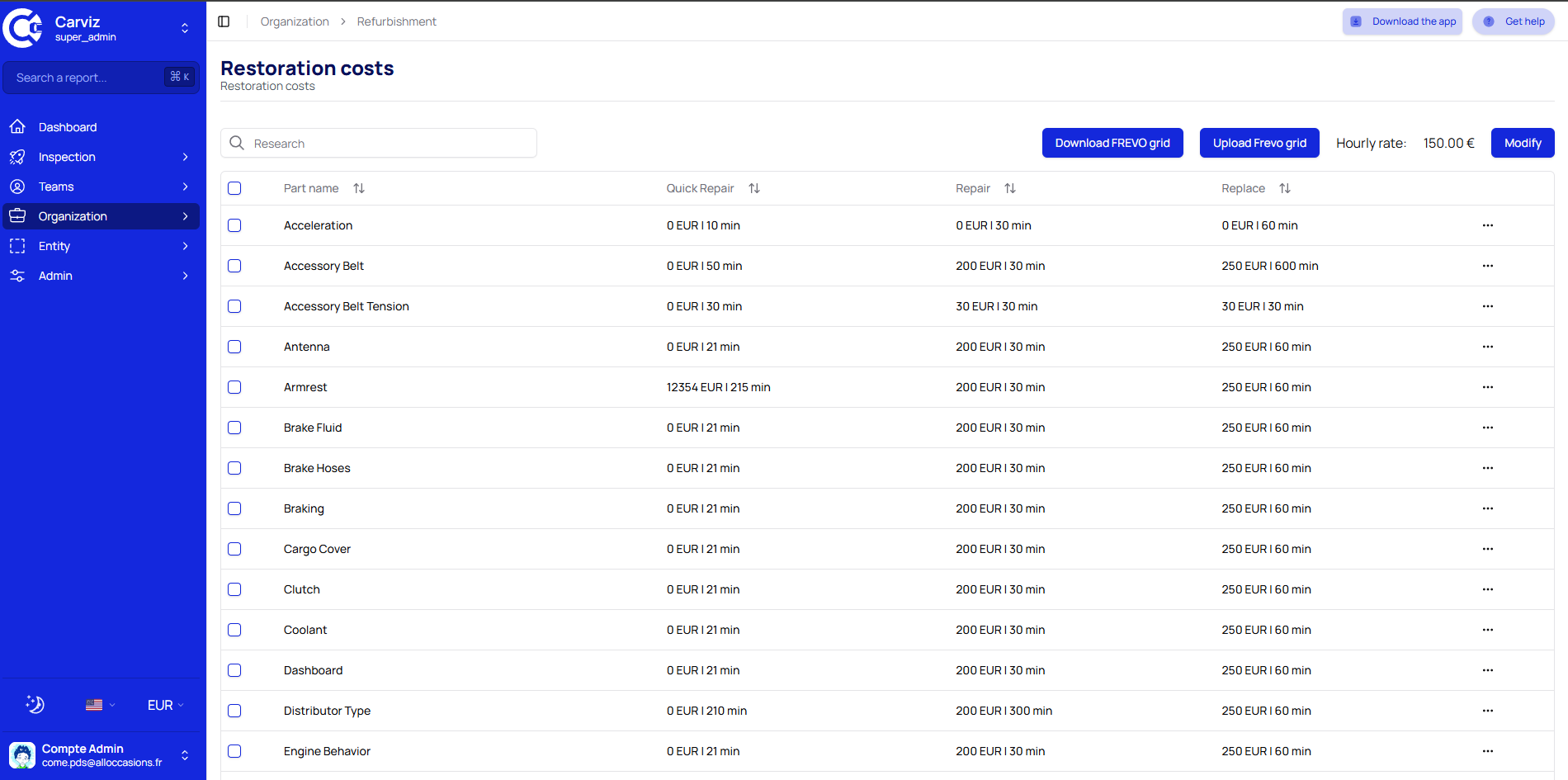
You can review all your costs for each pieces on [the Restoration page](https://dashboard.carviz.com/organization/fre), you can sets time to repair and also hourly rates.
Parts of those informations can be send to customers when we send them emails or messages on your behalf for distance inspection.
## Setup your Restoration costs
You can review all your costs for each pieces on [the Restoration page](https://dashboard.carviz.com/organization/fre), you can sets time to repair and also hourly rates.
 ## Add your Pricing Policy
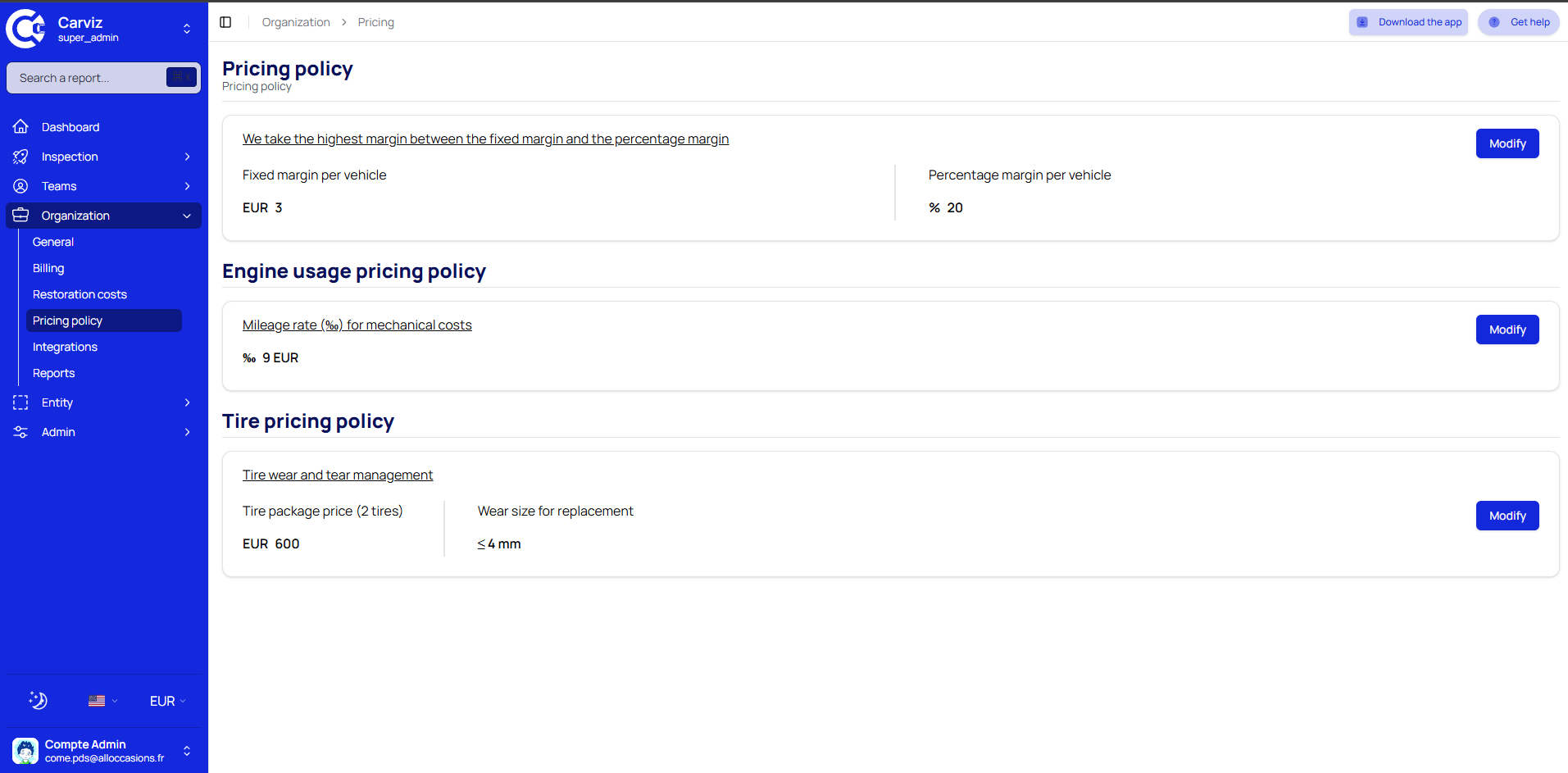
You can select price for tires packages, you desired mechanical costs, margin and more on [the Organization Pricing page](https://dashboard.carviz.com/organization/pricing)
## Add your Pricing Policy
You can select price for tires packages, you desired mechanical costs, margin and more on [the Organization Pricing page](https://dashboard.carviz.com/organization/pricing)
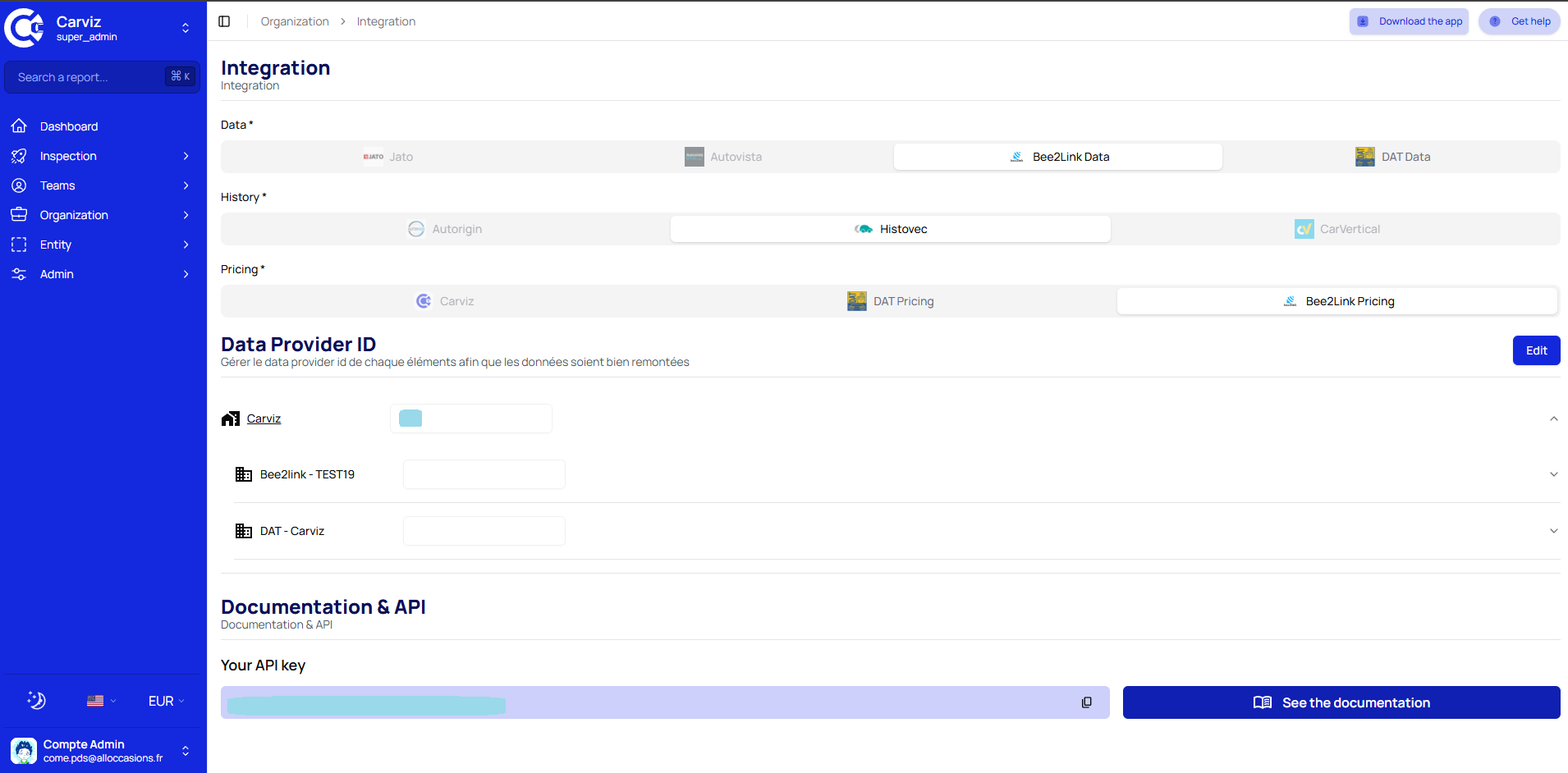
 ## Choose your data provider and pick your API Key
You have to select your **Data provider**, your **History Provider** and your **Pricing Provider**.
After selecting your Data provider, you need to add your Data Provider ID to your Organization, Entities, Dealerships and users.
Also you can pick your **API key** that can be used to do API requests to our system.\
[Integration page](https://dashboard.carviz.com/organization/integration)
## Choose your data provider and pick your API Key
You have to select your **Data provider**, your **History Provider** and your **Pricing Provider**.
After selecting your Data provider, you need to add your Data Provider ID to your Organization, Entities, Dealerships and users.
Also you can pick your **API key** that can be used to do API requests to our system.\
[Integration page](https://dashboard.carviz.com/organization/integration)
 ## Finally edit your reports settings
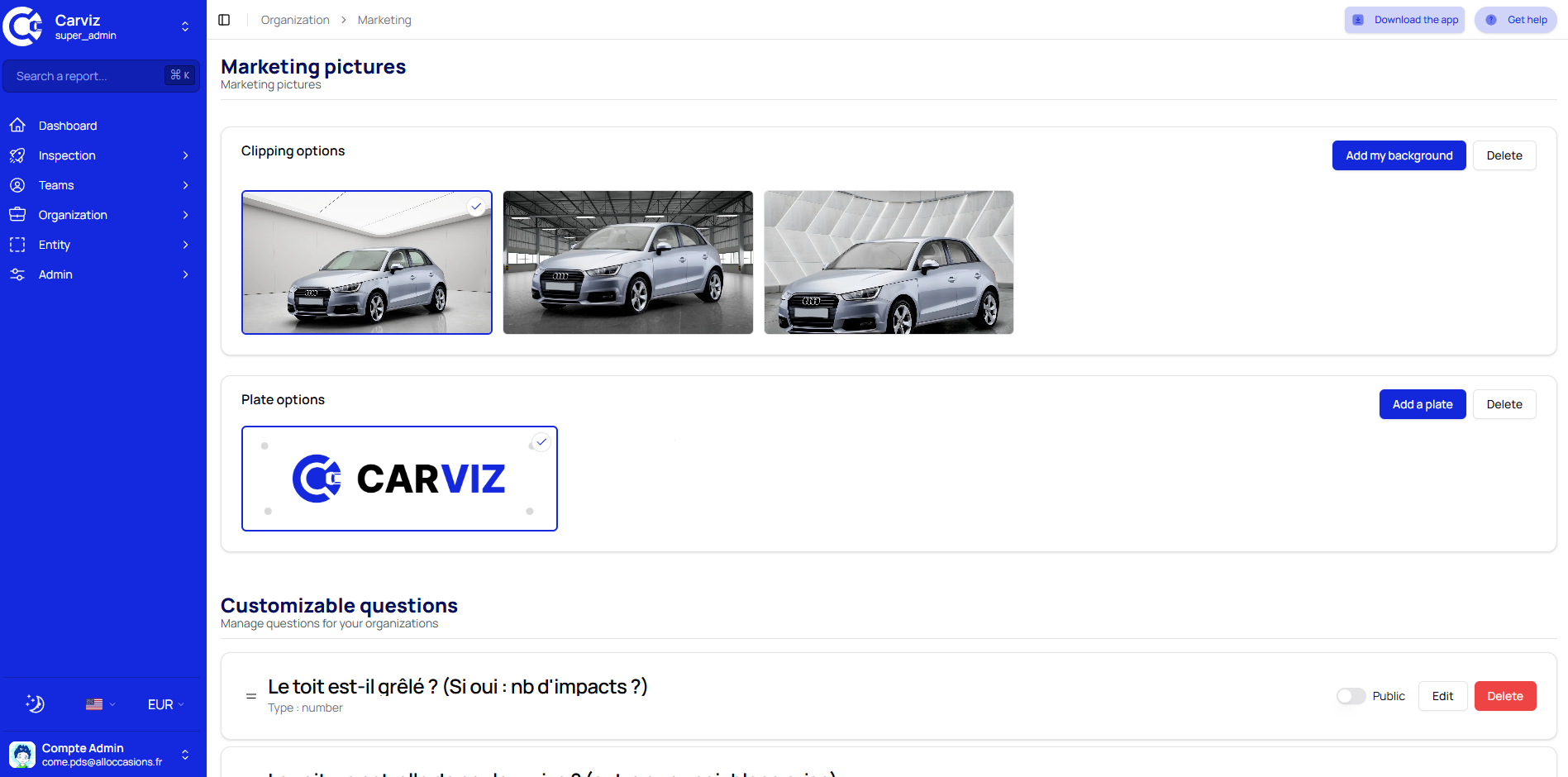
You can edit reports settings such as backgrounds, license plate hidder, custom questions and more..
[Reports settings page](https://dashboard.carviz.com/organization/marketing)
## Finally edit your reports settings
You can edit reports settings such as backgrounds, license plate hidder, custom questions and more..
[Reports settings page](https://dashboard.carviz.com/organization/marketing)